What is a Drive?
This guide defines the concept of a Drive within the Sync application, explaining its role as a connection point for both local and cloud storage.
In the context of the Sync app, a Drive serves as the fundamental connection point for your data. It represents any storage location—whether physical or digital—where your files are kept, accessed, or transferred to.
Think of a Drive as a "container" that the app connects to. Once a Drive is added, you can use it as a source (to copy files from) or a destination (to copy files to) in your Sync Tasks.
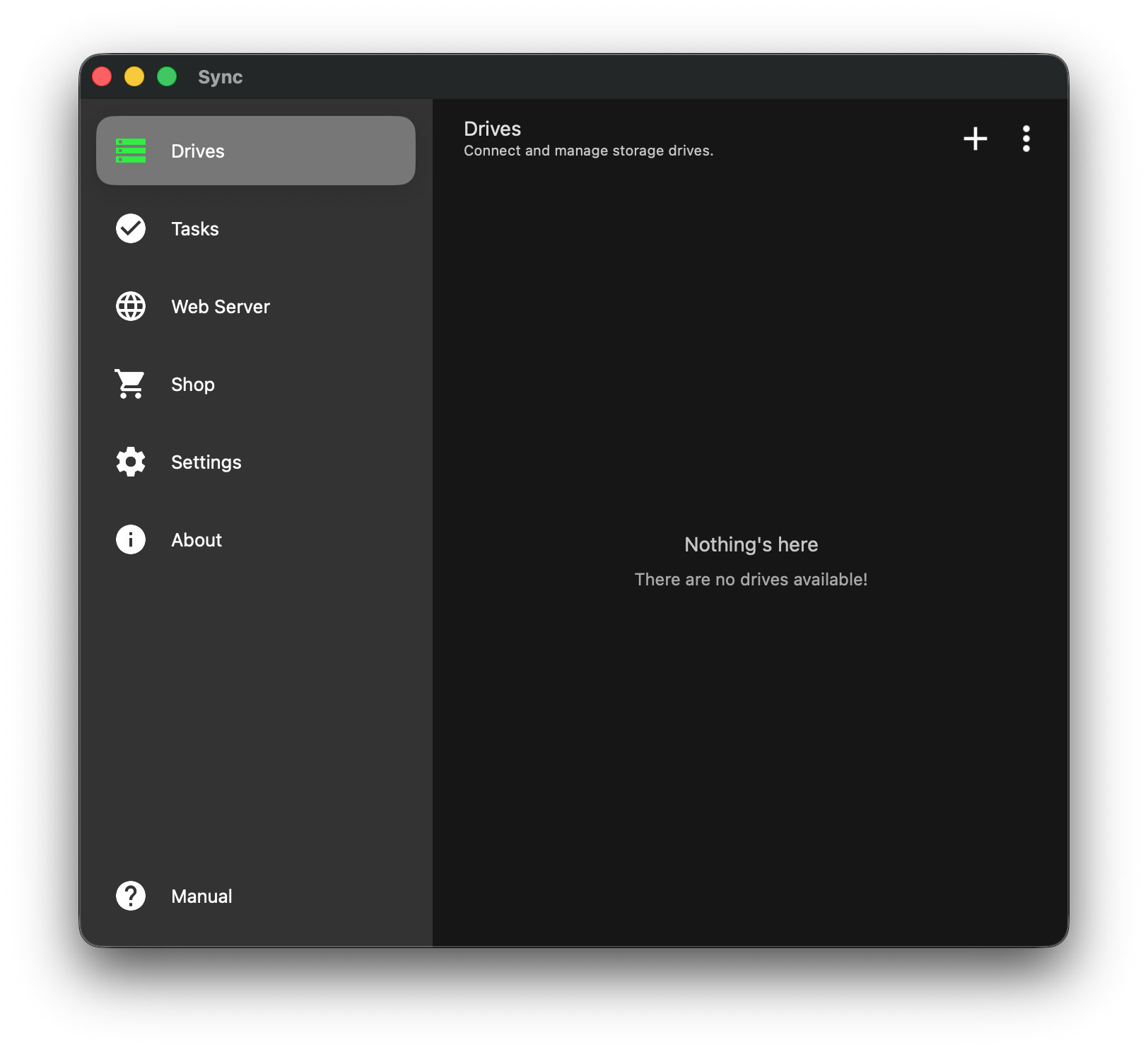
Reference: Drive List
Drive Types
The Sync app allows you to connect to a variety of storage ecosystems. These are categorized into Local and Cloud storage:
Cloud Storage Services
These allow you to connect directly to your online accounts.
- Amazon S3: For enterprise-grade object storage.
- Dropbox: Connects to your personal or business Dropbox file system.
- Box: Connects to your Box cloud storage.
- Microsoft OneDrive: Connects to your Microsoft account storage.
- Google Drive: Connects to your Google cloud storage.
Local Storage units
These allow you to access files physically present on your machine.
- Local Drive: This represents the main internal hard drive of your computer/phone.
- External Drive: (USB) This allows you to connect to removable media like USB sticks or external hard drives.
- Private Drive: An in-app isolated storage space (available on Android and iOS).
How to Add a New Drive
To start syncing files, you must first add at least one drive.
-
Navigate to Drives: Click on the Drives tab in the left-hand sidebar.
-
Add Drive: Click the Plus (+) icon located in the top right corner of the window (see Drive List).
-
Select Provider: A menu will appear listing all supported services (see Drive Selection Menu). Click on the service you wish to add.
Note:
- For cloud services like Dropbox, Box, OneDrive, or Google Drive, you will be redirected to a login window to authenticate your account.
- For AWS S3, you will be redirected to a page to input your access key, secret key, bucket name, and bucket region.
Supported Drives
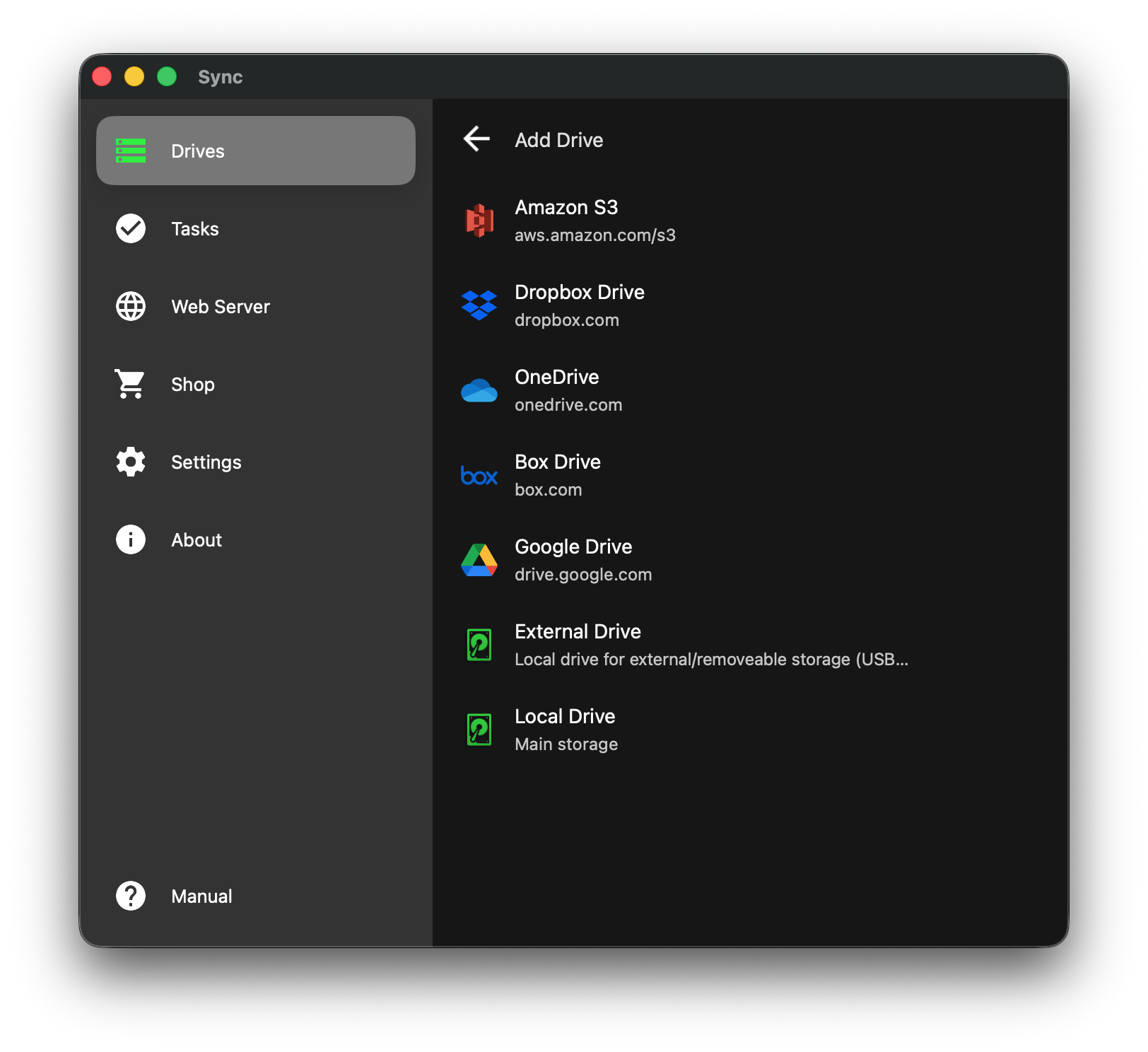
Reference: Drive Selection Menu
Managing Your Drives
Once a drive is added, it will appear in your main Drives list (as seen in Drive Listing). You can manage these connections at any time.
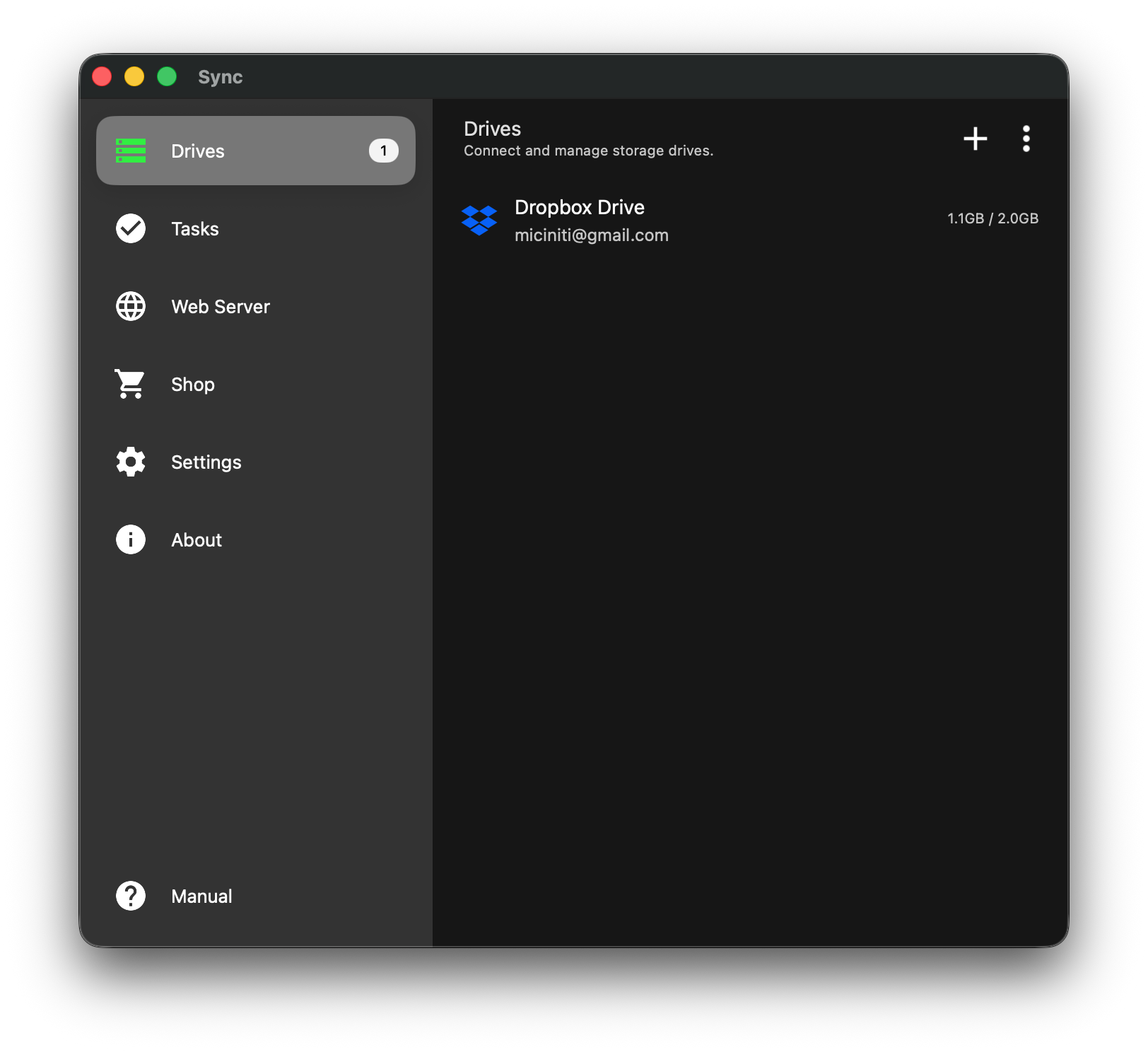
Reference: Drive Listing
Drive Options
By clicking the three dots (menu icon) next to a connected drive, or inside the drive details, you can access management options (see Drive Context Menu):
- Refresh: Reloads the file list to check for recent changes made outside of the app.
- Authenticate: Re-connect your account if your login token has expired or if the connection is lost.
- Rename: Give your drive a custom nickname (e.g., changing "Dropbox Drive" to "Work Dropbox") to make it easier to identify.
- Remove: disconnects the drive from the app. Note: This does not delete the files inside the drive; it only breaks the connection to the Sync app.
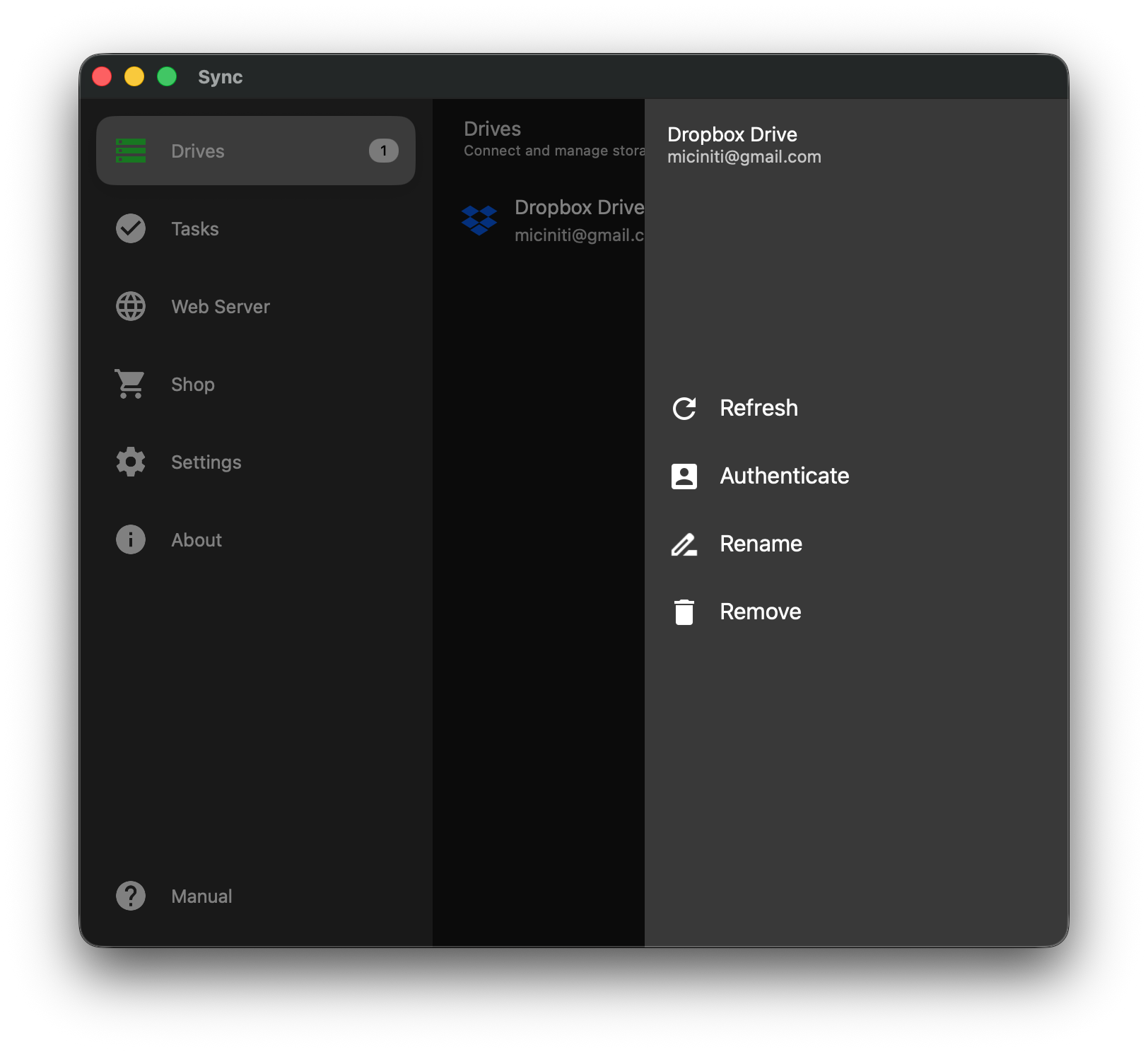
Reference: Drive Context Menu
Viewing and Managing Contents
You can also open any connected drive to view and manage its contents directly, acting as a file explorer. By clicking on the drive name in the list, you will see your file hierarchy.
From this view, you can perform the following actions:
- Browse: Navigate through your folders and files.
- Upload: Click the upload icon to manually add files to this drive.
- Download: Click to download the selected file.
- New Folder: Create new directories to organize your data.
- Manage Items: Select specific files or folders to Rename or Delete them.
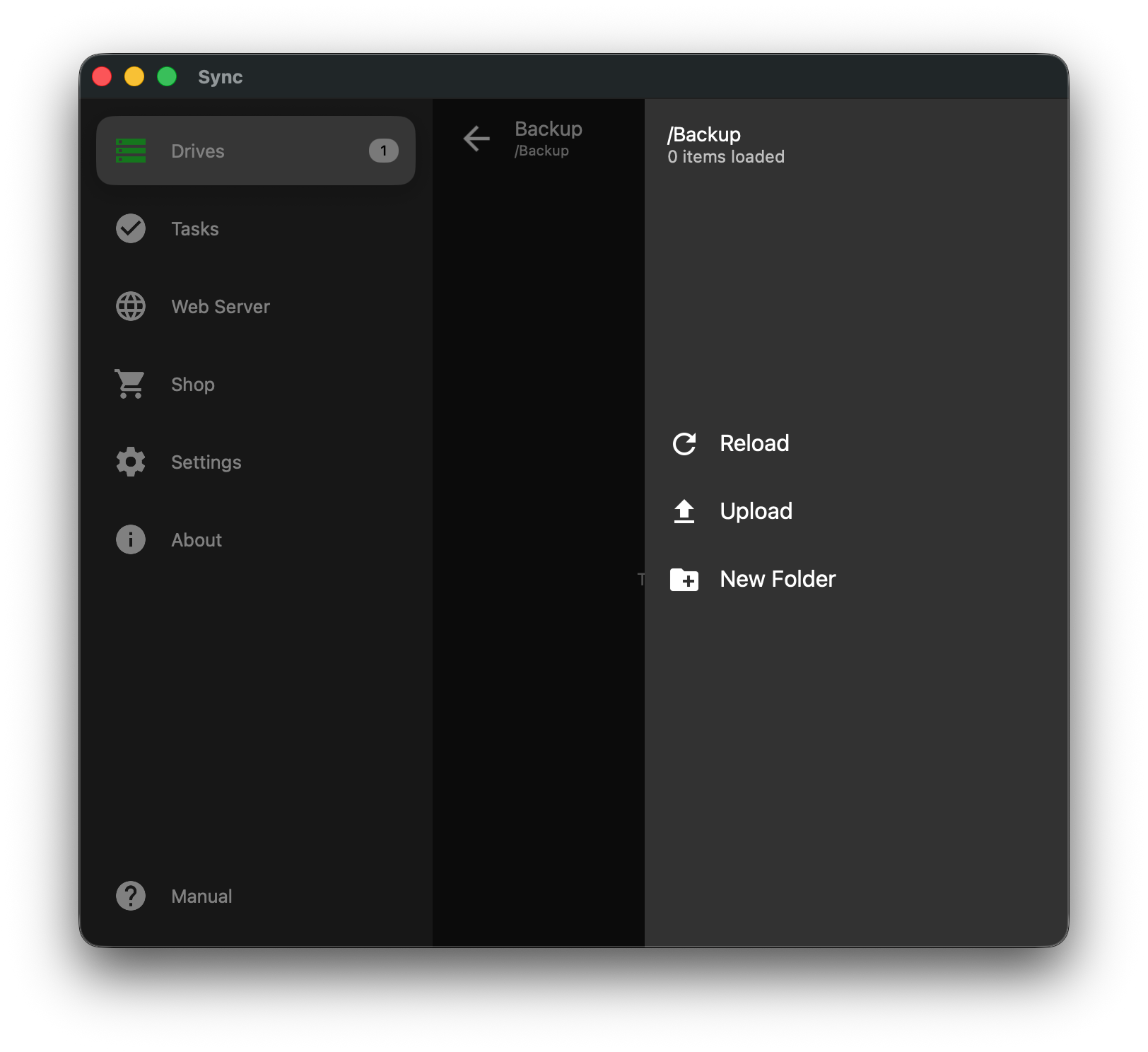
Reference: Drive Browser Context Menu