How to Create a Sync Task
This guide outlines the step-by-step process for creating a file synchronization task between your local storage and another drive (external or remote storage) using the Sync application.
Prerequisites
- Ensure your desired cloud account (e.g., Dropbox, Google Drive) is already linked in the Drives section of the app.
- Ensure the app has permission to access your local file system.
Step 1: Initiate a New Task
- Open the Sync application.
- Navigate to the Tasks tab on the left-hand sidebar.
- Click the Plus (+) icon located in the top right corner of the window.
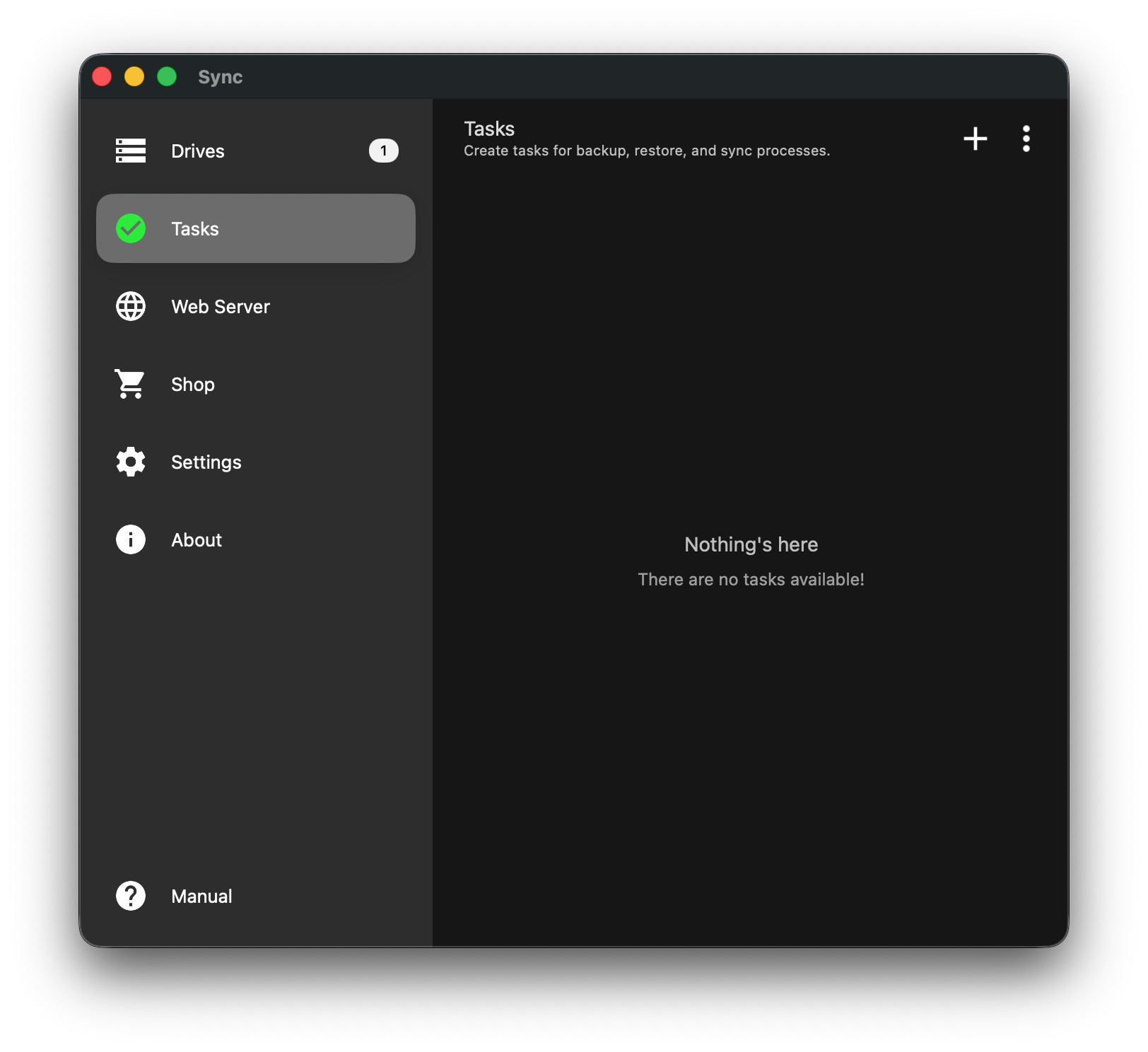
Reference: Image 1
Step 2: Select Task Type
You will be presented with three options. For this tutorial, we will create a two-way synchronization.
- Sync: Compares and updates changes in both the source and destination. (Select this option).
- Backup: One-way transfer. Uploads files from source to destination.
- Restore: One-way transfer. Downloads files from destination to source.
This choice is not permanent. It sets the task's default mode — the one the play button will always run. Once the task exists you can run it as any of five operations, including the changed-files-only Backup Sync and Restore Sync. See Step 9 below, and "Sync, Backup, or Restore: Choosing the Right Task Operation".
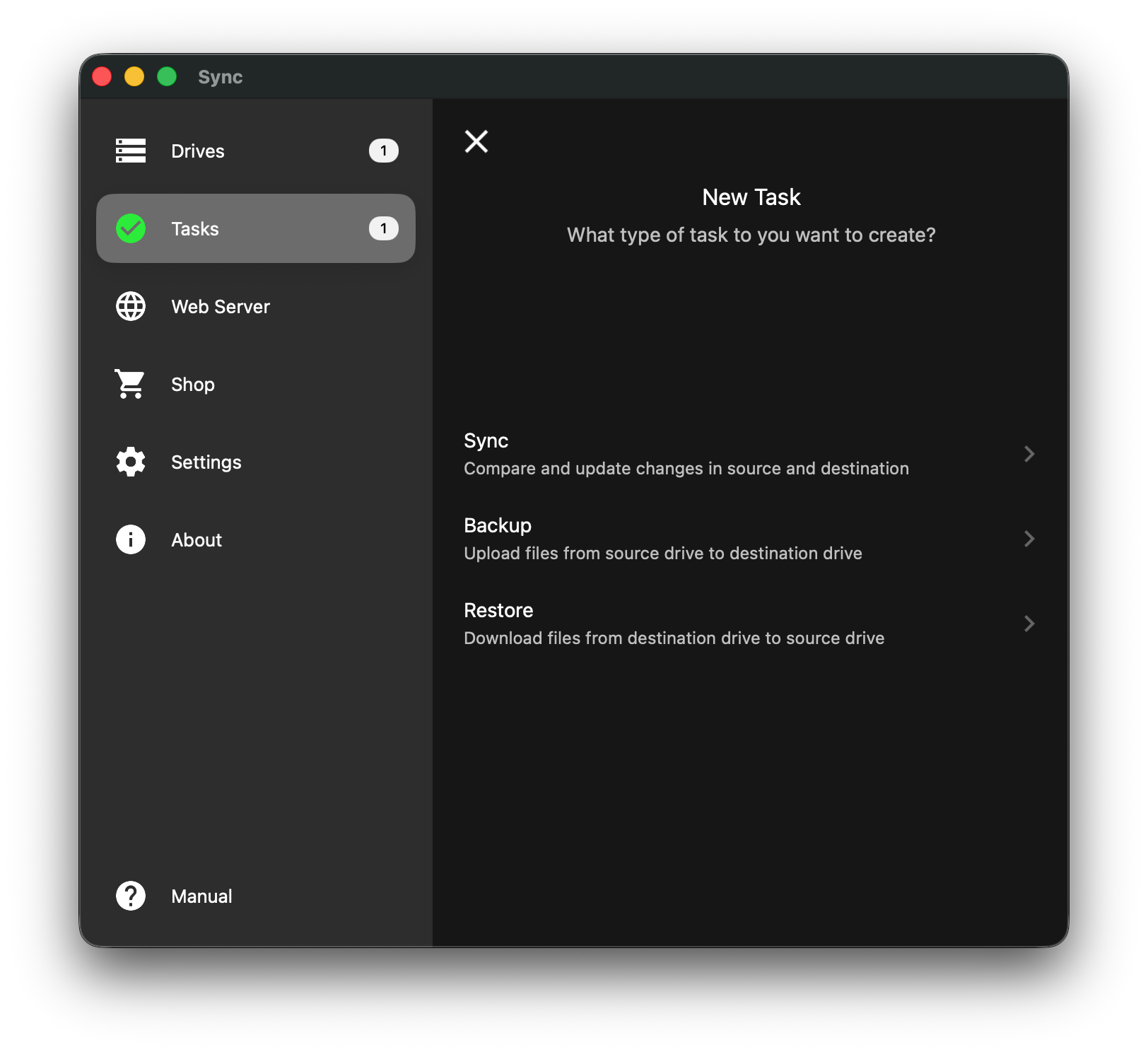
Reference: Image 2
Step 3: Configure the Source Drive
- The app will ask for the Source Drive (where your files are currently located).
- Click the green Select Source Drive button.
- From the slide-out menu, select Local Drive to choose a folder on your computer.
- Note: Using an external USB drive as a source may require an upgrade.
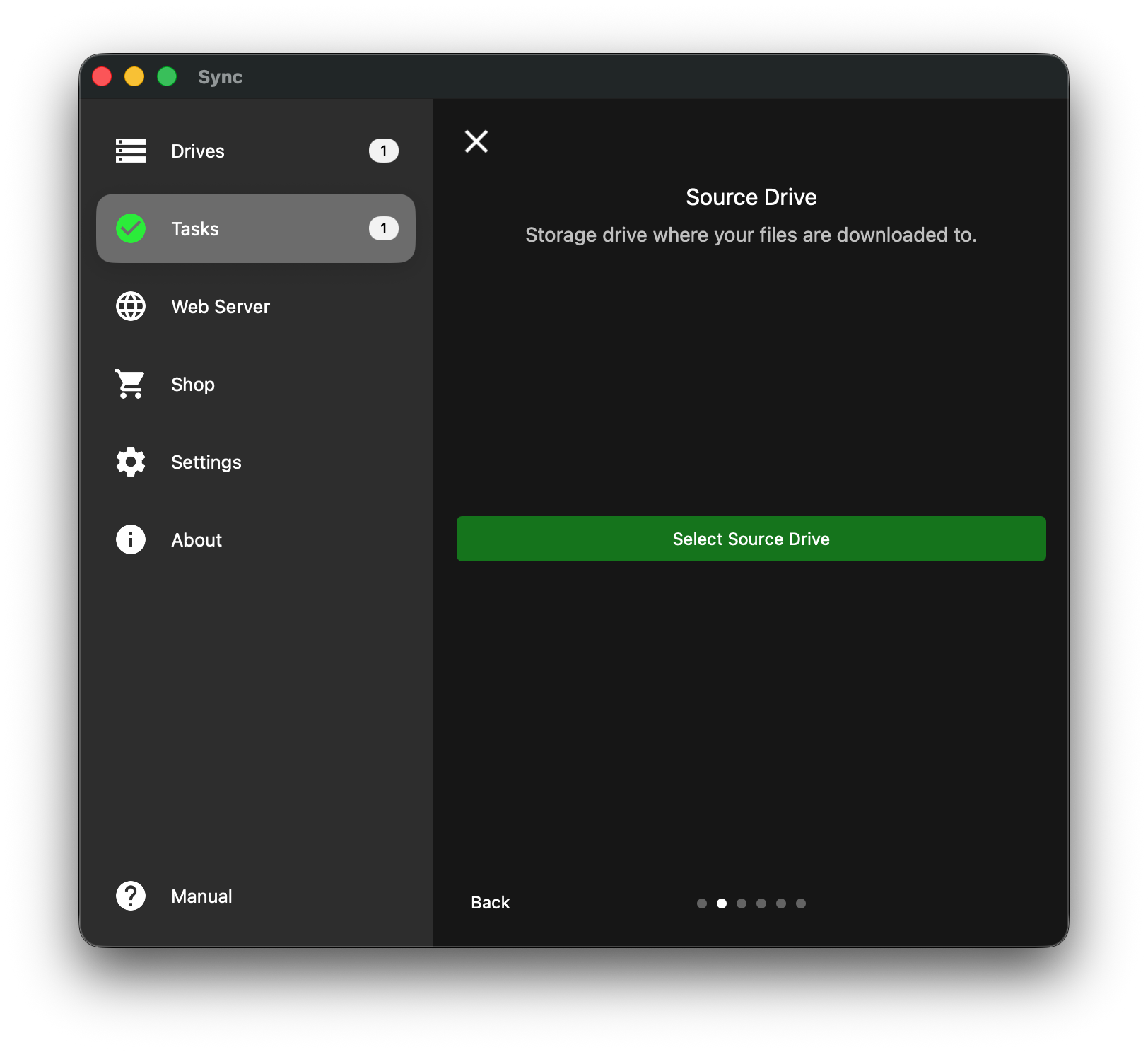
Reference: Image 3
Step 4: Choose the Specific Folder
- A system file picker window will appear.
- Navigate to the folder you wish to sync.
- Select the folder and click Open/Save.
Step 5: Configure the Destination Drive
- The app will now ask for the Destination Drive (where you want the files to go).
- Click the green Select Destination Drive button.
- Select your connected cloud storage (e.g., Dropbox) from the list that appears.

Reference: Image 5
Step 6: Choose a Folder on the Destination Drive
- Navigate to the folder you wish to sync to.
- Select the folder and click Open/Save.
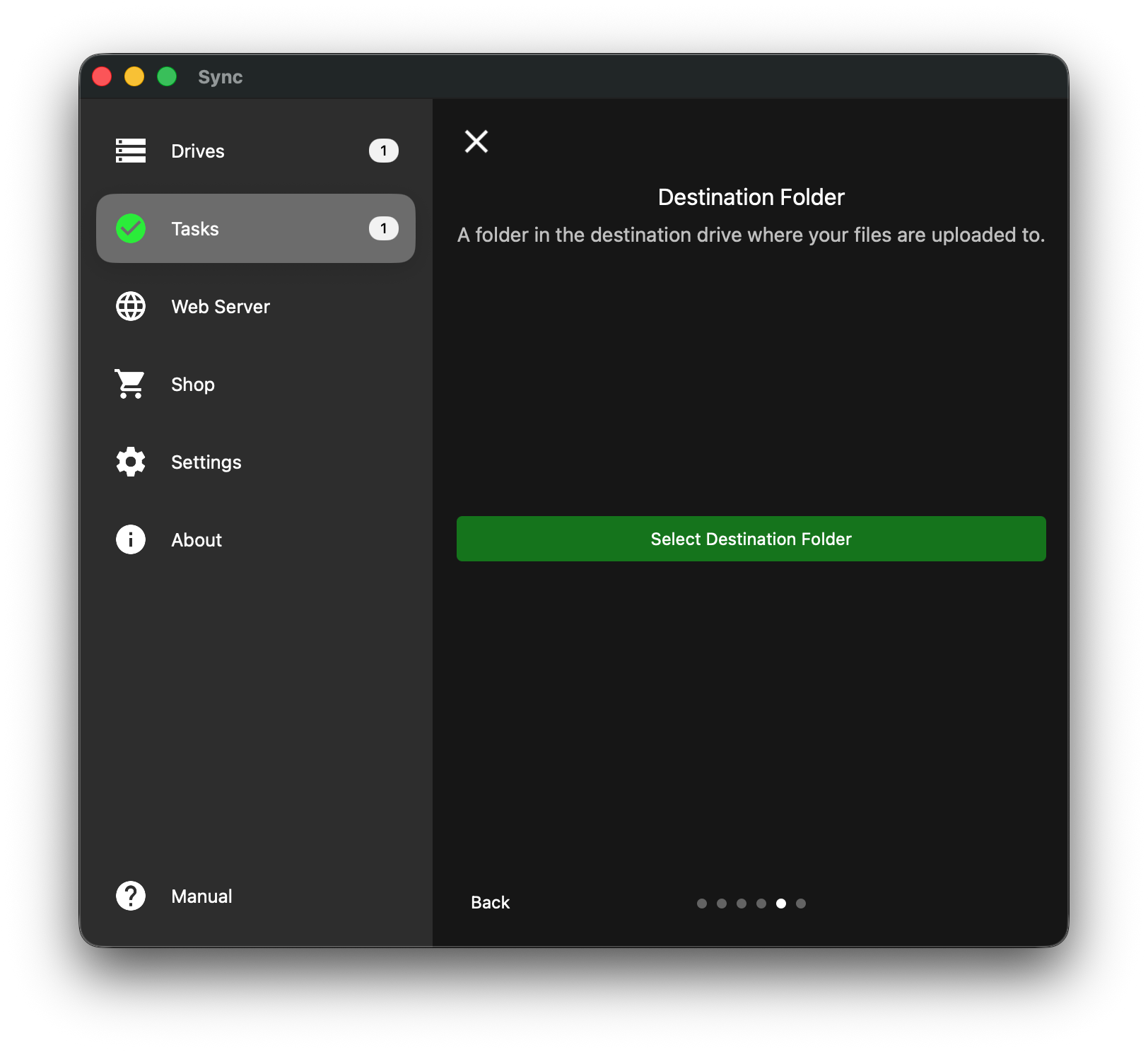
Reference: Image 6
Step 7: Review and Save
- Review the Task Summary screen to ensure the paths are correct.
- Source: Should display your local path (e.g., /Users/username/Downloads).
- Destination: Should display your cloud path (e.g., Dropbox Drive /Backup).
- Click the green Save button at the bottom of the screen.
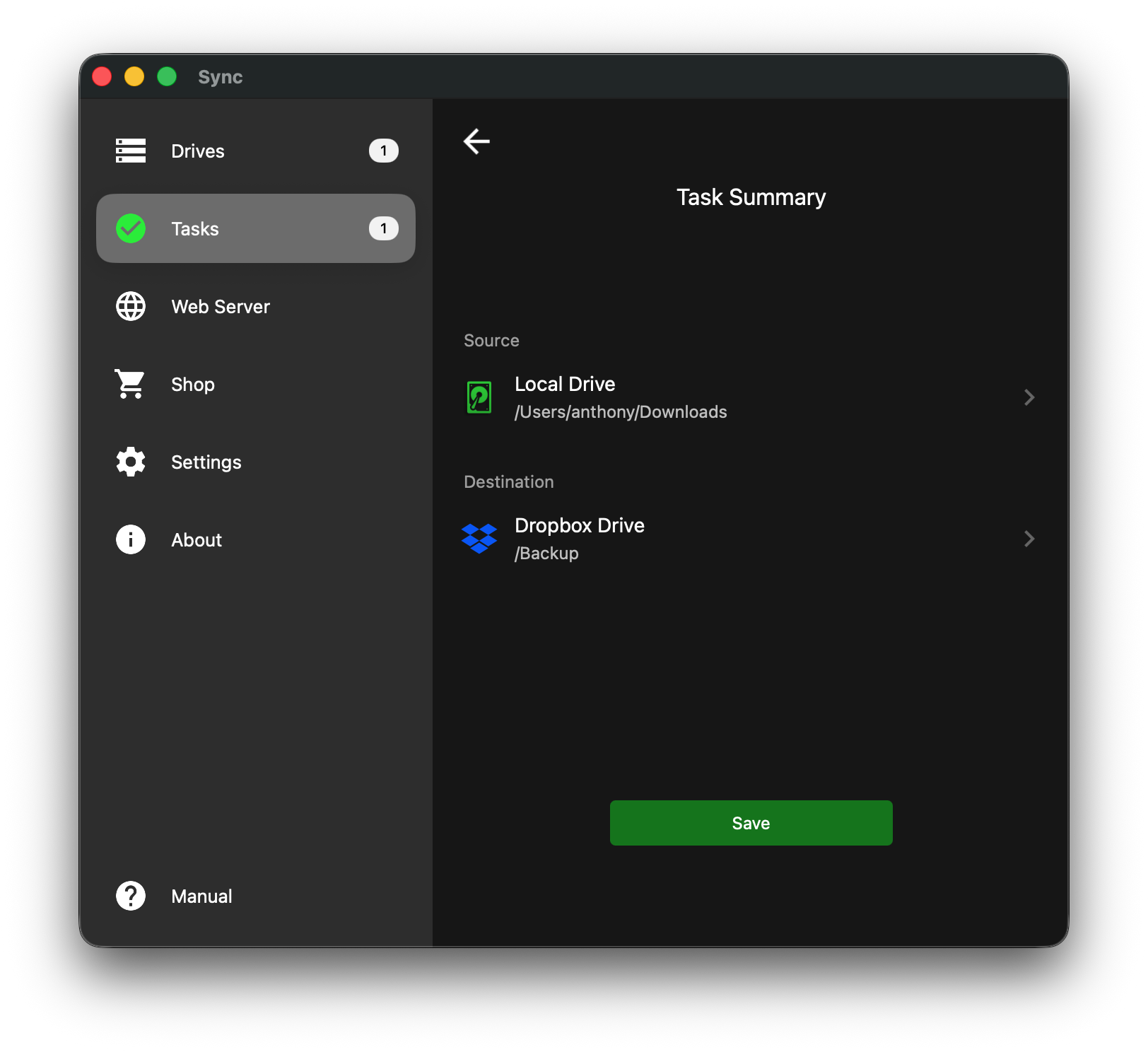
Reference: Image 7
Step 8: Start the Task
- A confirmation dialog will appear: "Do you want to start this task?"
- Click Yes to run the synchronization immediately.
- If you click "Yes", the task will be saved and started immediately.
- If you click "No", the task will be saved but will remain idle until you manually run it.
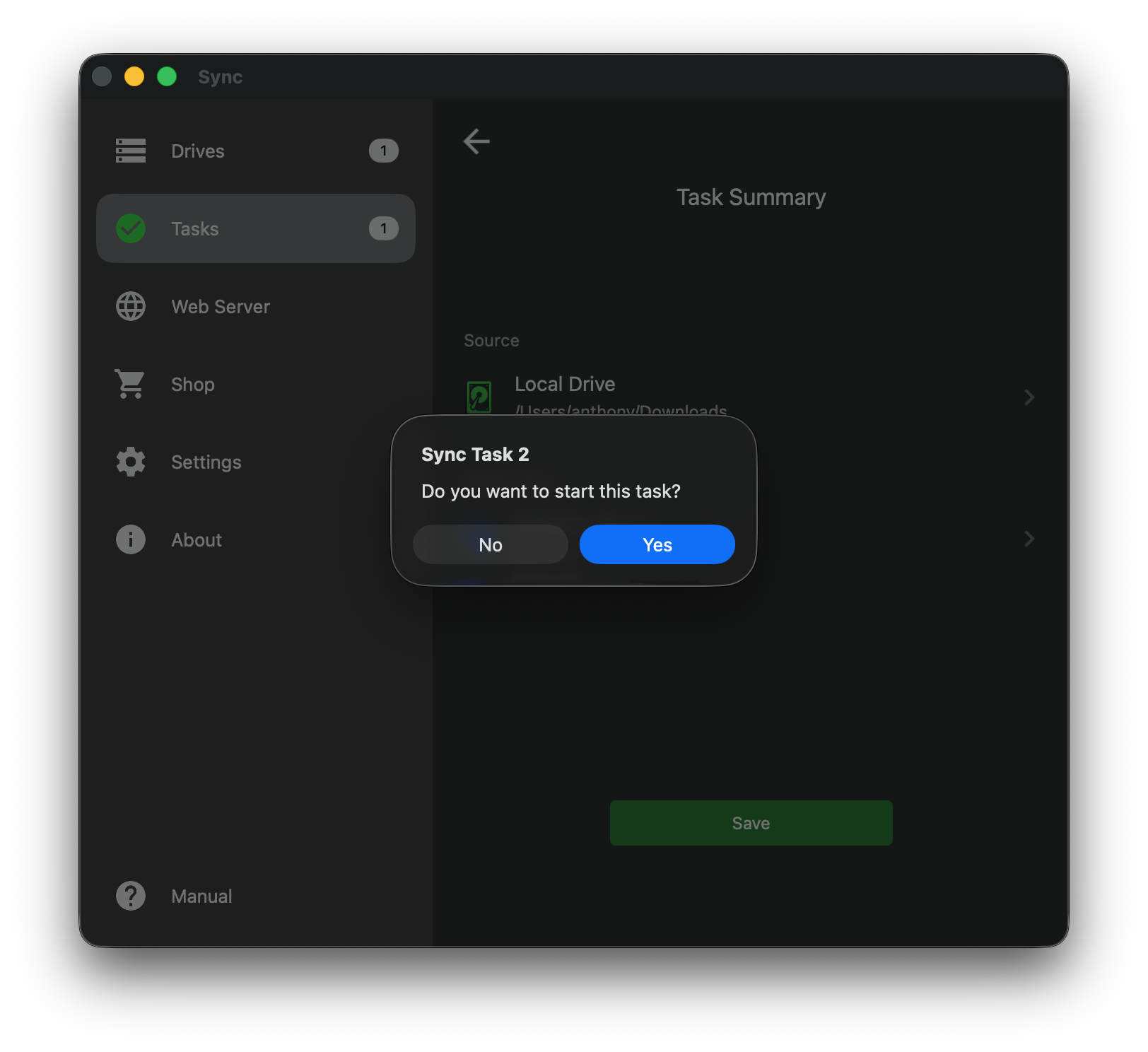
Reference: Image 8
Step 9: Running the Task With a Different Operation
Your task is saved, so you never need to set it up again. To run it later, open it from the Tasks list. Two controls sit in the top right of the task screen:
- Play (▶) — runs the task immediately in the mode you chose in Step 2. This never changes.
- More (⋮) — opens the task menu: Run, Reload, Add Source, Rename, Logs.
To run a different operation, choose ⋮ → Run and pick one of the five:
- Full Sync — two-way; makes both locations identical, and mirrors deletions
- Backup — uploads everything from source to drive
- Restore — downloads everything from drive to source
- Backup Sync — uploads only the files that changed since the last run
- Restore Sync — downloads only the files that changed
Selecting an operation starts the task straight away, so make sure the destination drive is connected first. Run applies to that run only; the play button still uses the task's original mode next time.
The task then scans both sides before transferring anything, and shows a task stats screen with what it found — including the keep choice (keep local, keep remote, or keep both) where the two sides disagree. A second stats screen appears when the run finishes. If there are no files to process, neither screen appears and the task simply completes.
You can turn these screens off in Settings → Task Stats. Note what else that does: with Task Stats off, deletions are disabled — no operation will remove files from either side. Leave it on if you want Sync to keep two locations genuinely identical; turn it off if you would rather nothing was ever deleted.
The most common use of this is a fast top-up: run Backup once for the first full copy, then Backup Sync from then on so only new and changed files are transferred.
Adding more folders: a task can hold several sources but one destination drive. Use ⋮ → Add Source to include another folder in the same task instead of creating a second task.
Checking what happened: ⋮ → Logs lists exactly what was transferred on the last run.
Do tasks run on a schedule?
Not yet. Sync does not run tasks automatically or in the background, so each run is started by you from the task screen. Because the task is saved, a top-up is three taps: open the task, ⋮, Backup Sync.